This page has been translated by AI and may contain errors. The Japanese version is the official document.
You can view the desktop of instrument control PCs managed by our division via the internal LAN.
How to Use VNC in the Division of Analytical Electron Microscopy
- Remote attended observation
- Access from within IMR (Internal LAN)
- Access from outside IMR
Level 1: Instrument Control PC to Data Extraction PC
VNC access from the “Data Extraction PC” installed next to the equipment.
(Excludes instruments without a connected Data Extraction PC.)
Since the “Data Extraction PC” is connected to the internet, combining it with web conferencing systems such as Zoom allows streaming the desktop of the instrument control PC to users inside and outside the institute.
Network Topology
“Instrument Control PC” ~ “Data Extraction PC” ~ “Internal LAN”
Prerequisites
An account for the web conferencing system used for streaming.
How to Use
- Click the VNC icon (shortcut) on the desktop of the Data Extraction PC. (Password entry may be required.)
Available Instruments
- TEM: JEM-ARM200F / JEM-2000EXII / EM-002B / JEM-2100plus (in preparation)
- FIB: VERSA 3D / QUANTA 3D
Level 2: Instrument Control PC to Internal LAN
VNC access from devices connected to the internal LAN.
Check measurement progress remotely from your laboratory.
Utilized by facility managers for management and support.
Network Topology
“Instrument Control PC” ~ “VNC Repeater” ~ “Internal LAN”
Prerequisites
- PC connected to the internal LAN
- Install VNC client (UltraVNC) in advance.
- https://forest.watch.impress.co.jp/library/software/ultravnc/
- Please install the client only. The server component is not required.
How to Use
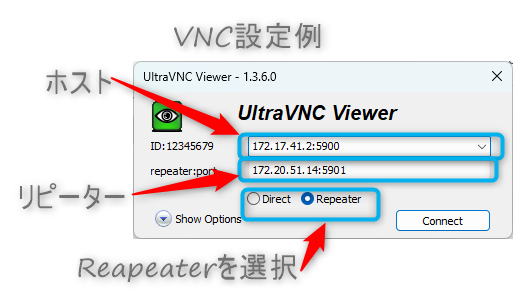
- Launch the VNC client, specify the address and port of the “Instrument” and “Repeater”, and connect.
- Enter the password.
Level 3: Instrument Control PC to Internet
Use the above (Level 2) functionality while connected to the internal LAN via VPN from outside the institute.
Network Topology
“Instrument Control PC” ~ “VNC Repeater” ~ “Internal LAN” ~ “SSL-VPN” ~ “Internet”
Prerequisites
- SSL-VPN account (Internal users only)
- Install VNC client (UltraVNC) in advance.
How to Use
- Connect to the internal LAN via SSL-VPN.
- Launch the VNC client, specify the address and port of the “Instrument” and “Repeater”, and connect.
- Enter the password.
Important Notes
- The desktop screen of equipment configured with VNC can be freely viewed from internal terminals. If performing highly confidential experiments, please stop the VNC server on the instrument control PC.
- If you stop the VNC server, please be sure to restart it after finishing your experiment.
- When the desktop is being viewed via VNC, the application icon color changes from “Green” to “Yellow”.
Connection Information
Please ask the instrument manager for the password.
| 部屋 | 装置名 | 装置詳細 | ホスト | リピーター |
|---|---|---|---|---|
| 2-B13 | JEM-ARM200F | TEM-CENTER | 172.17.41.1:5900 | 172.20.51.19:49155 |
| EDS | 172.17.41.2:5900 | |||
| GATAN | 172.17.41.3:5900 | |||
| 1-105 | JEM-2000EX | GATAN | 192.168.220.201:5900 | 172.20.51.9:5901 |
| EM-002B | GATAN | 192.168.220.101:5900 | 172.20.51.10:5901 | |
| EDS | 192.168.220.102:5900 | 172.20.51.10:5901 | ||
| 3-103 | JEM-2100plus | TEM-CENTER | 172.17.41.1:5900 | 172.20.39.34:49155 |
| EDS | 172.17.41.3:5900 | |||
| GATAN | 172.17.41.2:5900 | |||
| 2-613 | Quanta | Quanta | 192.168.150.121:5900 | 172.20.33.18:49155 |
| Versa | Versa | 192.168.150.111:5900 | ||
| EDS | 192.168.150.112:5900 | |||
| 2-612-2 | XRD | XRD | 192.168.150.10:5900 | 172.20.33.19:49155 |
| DSC | DSC | 192.168.150.20:5900 | ||
| AMBER-X | AMBER-X | 192.168.150.51:5900 | ||
| SIMS | 192.168.150.52:5900 | |||
| EDS | 192.168.150.53:5900 | |||
| 2-B14 | JEM-ARM200F(2) | TEM-CENTER | 172.17.41.1:5900 | 172.20.39.35:49155 |
| GATAN | 172.17.41.2:5900 | |||
| EDS | 172.17.41.3:5900 | |||